
Play and errors
The Play button (shortcut F5), in the top right corner, does three things in a row:
- Saves everything that is open.
- Compiles your C++ code. A box shows the progress: configurar → compilar → jogar (configure → compile → play).
- Opens the game in a separate window.
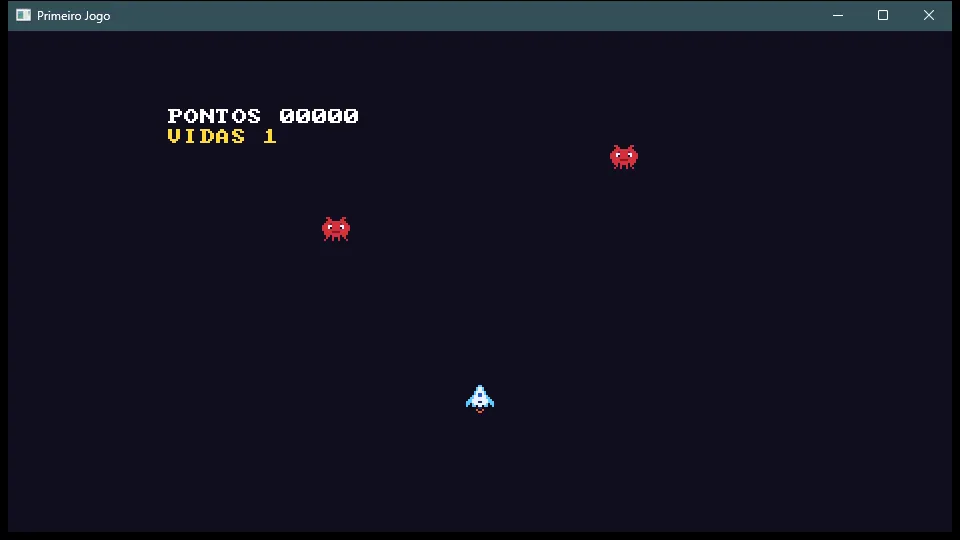
While the game is running, the button becomes Stop: click it (or press F5 again) to close the game. Closing the game window also works.
The Output
Section titled “The Output”The Saída (Output) panel, at the bottom, shows what is going on:
== compilando(compiling) and the compiler’s messages;== iniciando o jogo(starting the game) when the game opens;== interrompido(stopped) when you press Stop;- messages from your game and notices from the editor, such as reloaded files.
Limpar (clear) erases the messages, and Rolar (scroll) keeps the Saída always at the end.
When the code has an error
Section titled “When the code has an error”If the compiler finds a problem, the game doesn’t open and the Saída shows the error:
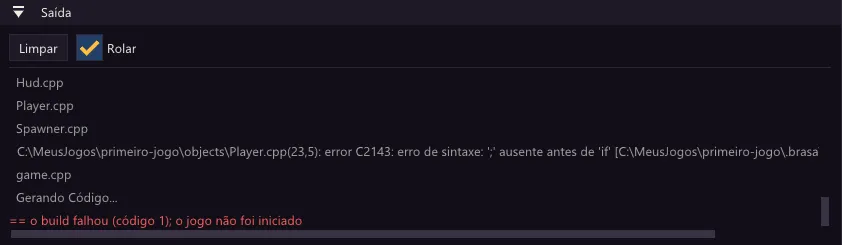
- The error line tells the file, the line and the column,
Player.cpp(23,5), and then the problem:';' ausente antes de 'if'(missing ‘;’ before ‘if’). The compiler writes these messages in the language of your Visual Studio Build Tools. - Click the error: your code editor opens on the file, at the right line.
- The last line confirms:
o build falhou (código 1); o jogo não foi iniciado(the build failed; the game was not started).
Fix it, save and press Play again. To understand the most common messages, see Reading compiler errors.
Status bar
Section titled “Status bar”At the foot of the editor, SDK ok and CMake ok show that Play has what it needs to compile. If either of them shows a problem, see Common problems.
Which code editor opens?
Section titled “Which code editor opens?”In Projeto › Preferências… (Project › Preferences), the Editor de código (code editor) field chooses the program. Empty, Brasa uses VS Code (code), if it is installed, or the program associated with .cpp files.
The Game panel
Section titled “The Game panel”The game runs in a tab next to the Editor, the Jogo (Game) panel. Click the game so it gets the keyboard. At the top of the panel, Neste painel (in this panel) or Numa janela (in a window) chooses where the next Play runs.