
Sprite editor
Double-click a sprite in Recursos (Resources) to open the sprite editor in a tab. This is where a PNG image becomes an animation.
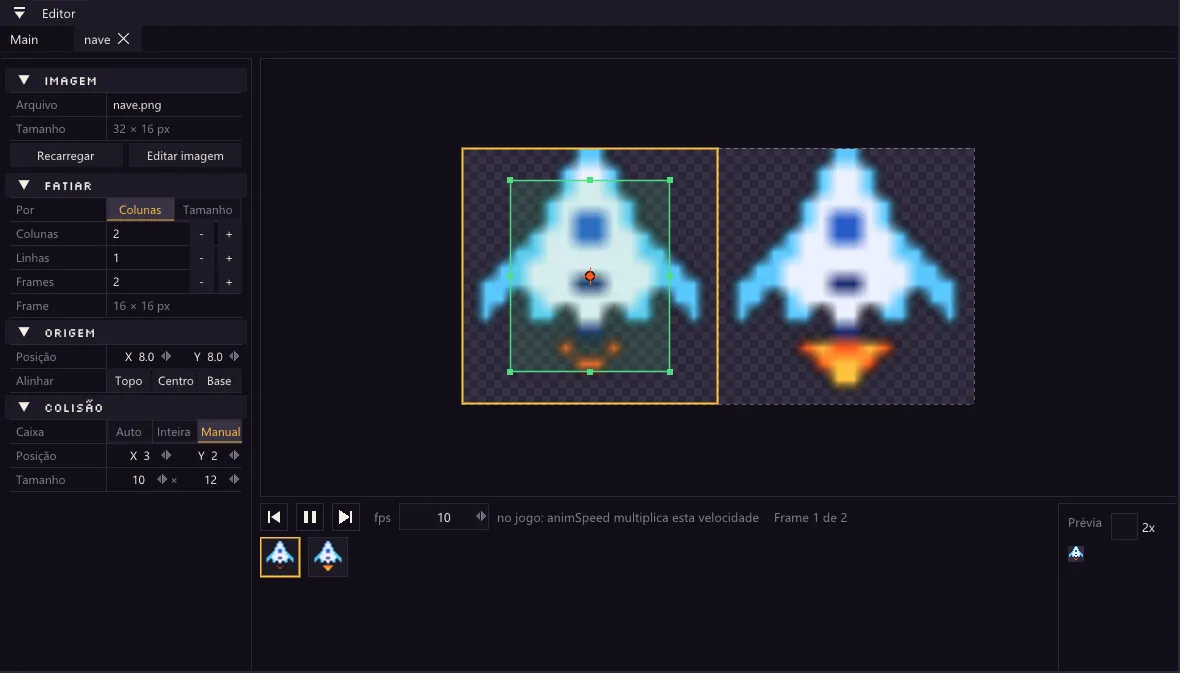
The properties are in the left panel, in the same grid as the Inspector: drag the numbers or double-click to type.
Imagem (image)
Section titled “Imagem (image)”Shows the Arquivo (file) and its Tamanho (size). Recarregar (reload) reads the image from disk again, and Editar imagem (edit image) opens the PNG in the associated program (for example Aseprite or Piskel). When you save the image there, Brasa reloads it by itself.
Fatiar (slice)
Section titled “Fatiar (slice)”An image can have several frames side by side. Under Por (by), choose how to split it:
- Colunas (columns): how many frames horizontally (Colunas) and vertically (Linhas, rows).
- Tamanho (size): the Largura (width) and Altura (height) of each frame, in pixels.
Frames says how many frames the animation uses, and Frame shows the size of each one.
Origem (origin)
Section titled “Origem (origin)”The origin is the point of the sprite that sits at the object’s x, y position. Change it in Posição (position, X and Y), use the Alinhar (align) buttons (Topo, top; Centro, center; and Base, bottom) or drag the orange dot on the frame.
- Centro is good for ships, shots and enemies.
- Base is good for platformer characters, which stand on the ground.
Colisão (collision)
Section titled “Colisão (collision)”The collision box is the green rectangle: the area that counts when the object touches another. Under Caixa (box), choose:
- Auto: Brasa computes it from the visible pixels.
- Inteira (whole): the entire frame.
- Manual: you drag the green handles on the frame, or change the Posição (position) and the Tamanho (size).
A box slightly smaller than the drawing makes the game fairer: the player doesn’t die because of one pixel of wing.
Timeline and preview
Section titled “Timeline and preview”At the bottom, the frames appear in sequence. The buttons Frame anterior (previous frame), Tocar/Pausar (play/pause) and Próximo frame (next frame) control the animation, and the Prévia (preview) shows the sprite at its real size (or enlarged, such as 2x).
The fps field sets the speed of the animation, in frames per second. It is saved in the sprite and applies in the game too: every object with that sprite animates at that speed. In the code, the object’s animSpeed multiplies that value (1 = the speed of the sprite). See Animate a sprite.